With Windows 11’s privacy concerns and Microsoft’s bad decisions overall (web-based system apps consuming GBs of RAM for example), many people are looking to move to Linux.
I want to share some thoughts on this process as there are many things to consider.
Remember: Always test your Linux distribution of choice with a Live USB.
Hardware Compatibility
Verify your hardware actually works in Linux, for example:
- WiFi and Network Adapters: Some WiFi and network adapters require additional drivers or simply don’t work as it should. Boot a live USB and make sure you can connect to your network.
- NVIDIA GPUs: The proprietary drivers work fine these days (sometimes). The open-source nouveau drivers exist but have limited performance. If you game or do GPU-intensive work, check that your card is supported by the current NVIDIA driver packages or change to AMD.
- Peripherals and Function Keys: Now, most keyboards and mice work out of the box, but special features or FN keys might not. In my case, my Logitech mouse worked fine, but special configurations required Logitech’s Windows software (which sucks). I worked around this by remapping mouse gestures to achieve similar functionality, which is not perfect, but good enough. Touchpads, fingerprint readers, and webcams usually work, but check with a Live USB before you commit.
Software Alternatives
Most Windows applications won’t run on Linux. That’s just how it is.
- MS Office: If you use Microsoft Office (Word, Excel, PowerPoint) heavily, the alternatives might not be good enough for you. LibreOffice and OnlyOffice are solid, but if you depend on complex Excel macros or specific formatting in Word documents, you’ll might not like the change to Linux. The web versions of Office 365 work fine, but they’re limited compared to the desktop apps.
- Creative Software: Adobe products don’t run natively on Linux. GIMP exists as a Photoshop alternative, but it’s a different tool with a different workflow.
- Gaming: This has improved dramatically thanks to Valve’s Proton. Steam works great and most single-player games run well. Check ProtonDB for your specific games. Now, multiplayer games with kernel-level anti-cheat (like Battlefield), won’t work on Linux because their anti-cheat systems won’t run outside of Windows.
- Specialized Software: CAD programs, industry-specific tools, certain VPN clients, etc. won’t work on Linux or don’t have an alternative app. WINE can run some Windows applications, but might break with updates.
Choosing Your Distribution
Honestly, there are too many Linux distributions (which is good due to freedom of choice and bad because there is just too many), but the recommendation is to use something stable and with good community support.
My top recommendations are:
- Fedora: This is what I use, cutting-edge packages, great defaults, secure, and stable enough for daily use. The 6-month release cycle means you get new software at a good pace.
- Ubuntu/Debian: They have the most documentation and largest package repositories. I tend to recommend Ubuntu less because of their really dumb choices the past few years like the Unity DE, snap, pro, etc, but it’s still good for new folks.
- Arch/Manjaro: The meme. They have rolling releases with bleeding-edge packages, but require more maintenance and troubleshooting.

Here is an article for popular Linux distros: https://www.geeksforgeeks.org/linux-unix/8-most-popular-linux-distributions/
Package Management
Forget downloading .exe installers from random websites. Linux uses centralized package managers:
dnfon Fedora/RHEL.apton Debian/Ubuntu.pacmanon Arch-based systems.
Everything installs through your package manager. Updates are centralized and are much safer than the Windows model of downloading installers from wherever and hoping they don’thave malware.
Besides traditional packages, there is also AppImages (portable applications) and Flatpaks (sandboxed apps with their own dependencies). Each has trade-offs, but they are good options and easy to install.
Blog posts with more info on Flatpaks:
- https://danoss.me/categories/linux/why-flatpaks-take-so-much-storage-space/
- https://danoss.me/categories/linux/flatpak-stopped-working/
Desktop Environments
Linux offers multiple desktop environments, you’re not locked into one interface like Windows.
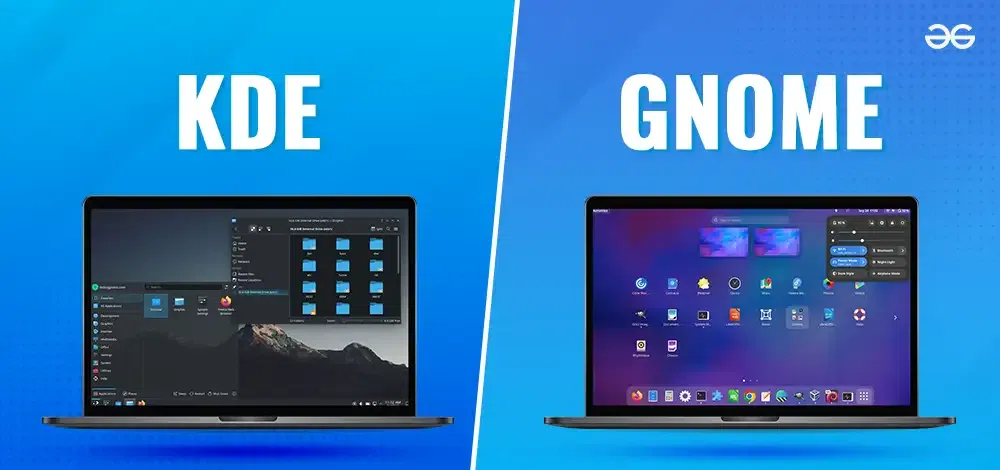
- GNOME (Default in many distros) provides a modern and simple workflow. It works well but doesn’t offer many features unless you also install the Tweaks app and additional GNOME extensions. Not perfect but really good if you get used to it.
- KDE Plasma is highly customizable and feels more Windows-like if configured that way.
- COSMIC is System76’s desktop environment written in Rust. Really good and intuitive but is still pretty new with some fixes and tweaks needed. Really promising stuff.
- Hyprland is a modern Wayland compositor with dynamic tiling. Popular with the ricing and meme community. It’s really fast and customizable.
- XFCE/LXQt are lightweight options that run well on older hardware.
Each desktop environment has different resource requirements and philosophies. Try them with live USBs before deciding.
Making the Decision
Plan Your Migration
Don’t just wipe Windows immediately.
Back up everything first: documents, browser profiles, email configurations. Export anything tied to Windows-specific tools.
I don’t recommend dual-booting because it’s a half-measure. First test if you like Linux and if everything works as it should with a VM (virtual machine) and/or Live USB.
Why Choose Linux
Linux gives you total control on what happens on your system.
You don’t really need to be super technical to use it. Nowadays there is a graphical application for almost everything.
Linux gives you more privacy, knowledge, and freedom that Windows restricts. If you care about these principles then Linux is for you.
Why Stay in Windows
At work, most orgs use AD (Active Directory), MS Office, proprietary software, etc. all of which run on Windows.
If a specific software or hardware tool you purchased runs on Windows or has many problems in Linux, you might want to stay in Windows.
If you can’t live without a specific multiplayer game with kernel-level anti-cheat at the Windows kernel level, you might want to stay in Windows (check ProtonDB for compatibility).
Each person has their own use case, choose wisely.

My Experience
I switched to Fedora a few years ago and haven’t looked back. The initial learning was exciting and painless, but after learning how Linux works, I was able to get full control of my system. Windows nowadays feels clunky and restrictive when I need to use it.
The command line access, native container support, and full control over my system makes Linux a good choice for me, but this use case varies from person to person.