
Revised and improved version of the original post: Xbox Controllers in Fedora Linux
Normally, Xbox Controllers (in my case, Xbox Core Wireless Gaming Controller - might upgrade in the future) works out of the box. However, if it doesn’t for any reason read below.
In my case, the Xbox Controller was working normally and stopped working after a major system upgrade. The OS could detect the device (udevadm monitor showed the connection) but Steam didn’t recognize any input from the Controller.
Detecting the Problem
- The controller pairs successfully via Bluetooth or connects via USB.
- The kernel sees the device connecting and disconnecting (via
udevadm monitor). - Steam shows no controller input at all.
How Linux Handles Xbox Controllers
As everything in Linux, everything is handled through various layers.
The Linux Input Stack
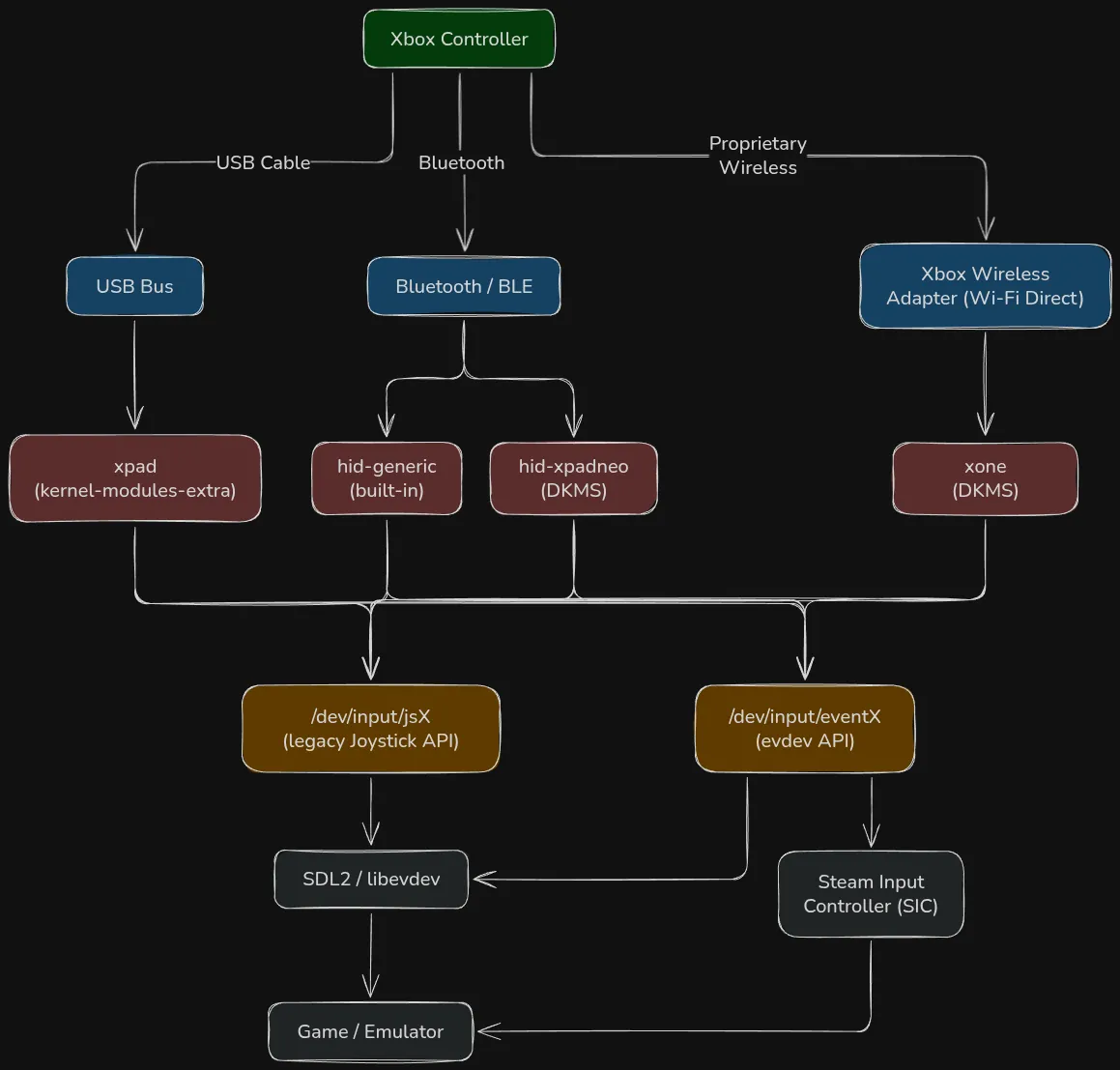
When you connect a controller to a Linux system, the input goes through various subsystems before it reaches the game. Here’s what happens:
- The controller device connects via a transport layer (USB or Bluetooth)
- The kernel loads the appropriate driver module (kernel module) for that specific device type.
- The driver translates the raw device data into standard Linux input events, which are exposed through device nodes in /dev/input.
- Apps like Steam read those device nodes and pass the data to games.
If one of these layers fails (missing driver, wrong permissions, missing udev rules, etc.) the controller will not work, even if it’s detected by the kernel.
USB vs Bluetooth Connections
The driver your Xbox controller uses depends on how you connect it, this is important when knowing where to look when troubleshooting.
- USB connections use the
xpadkernel module (part of thekernel-modules-extrapackage on Fedora). This is the in-tree Linux kernel driver specifically written for Xbox controllers connected over USB and handles Xbox, Xbox 360, Xbox One, and Xbox Series controllers when plugged in via USB. - Bluetooth connections do not use
xpad, instead they use the standard Bluetooth HID profile. The kernel handles this through thehid-genericdriver ( or the third-partyhid-xpadneodriver if installed). - Xbox Wireless Adapter (Wi-Fi Direct) is a third option. The proprietary Xbox Wireless Adapter uses Wi-Fi Direct, not Bluetooth, and requires the
xonedriver (available here) or the olderxowdaemon.
The Input Event Pipeline
Once the correct driver loads and processes raw device data, the kernel exposes the controller in /dev/input/:
- The legacy Joystick API creates
/dev/input/jsXdevices. This is the old interface. Some older games and tools still use it, but it provides less info about available buttons and axes. - The evdev API creates
/dev/input/eventXdevices. This is the modern interface. It provides more info (button states, axis values, force feedback) and is what most modern games expect.
You can see both device nodes for a connected controller:
ls -la /dev/input/by-id/ | grep -i xbox

# Legacy Joystick API:
# usb-Microsoft_Controller_XXXX-joystick -> ../js0
# evdev API:
# usb-Microsoft_Controller_XXXX-event-joystick -> ../event16
Both interfaces are created from the same driver. If neither exists, the driver didn’t load. If only one exists, something is partially broken. If both exist but your game sees nothing, the problem could be udev rules or the application’s input configuration.
Why Fedora Upgrades Break Xbox Controller Support
Kernel Module Packaging on Fedora
Fedora splits kernel modules across multiple packages.
The base kernel and kernel-modules packages contain modules needed for most common hardware (storage controllers, network adapters, filesystems, display drivers), while the kernel-modules-extra package contains optional modules for less common hardware, like xpad.
Each kernel version has its own corresponding kernel-modules-extra package. When you install kernel-modules-extra-6.12.5-200.fc41.x86_64, those modules only work with kernel 6.12.5-200.fc41. Install a new kernel and those modules are useless, you need the matching kernel-modules-extra for the new kernel version.
What Happens During A System Upgrade?
During a major Fedora version upgrade (e.g., Fedora 43 to 44), dnf system-upgrade downloads and installs packages for the new release.
The new release ships a new kernel. If kernel-modules-extra was explicitly installed (you ran dnf install kernel-modules-extra at some point), DNF should also install the corresponding package for the new kernel, but not always
If xpad support was pulled in through a dependency chain that changed between releases, or if the package was installed as a weak dependency, or if there was a conflict during the upgrade transaction, kernel-modules-extra can silently drop out. The system boots fine because xpad isn’t essential, its just a gamepad driver, so you’ll only notice it when trying to use the controller.
Why “udevadm monitor” Is Misleading
The udevadm monitor command shows the controller device connecting, but it doesn’t mean it is working. The output only shows USB bus activity (meaning the kernel just detected the device being connected).
KERNEL[12345.678] add      /devices/pci0000:00/.../usb1/1-2 (usb)
UDEV  [12345.690] add      /devices/pci0000:00/.../usb1/1-2 (usb)
What you actually want to check is whether a driver bound to the device:
# Check if xpad claimed the device (USB)
lsusb -t | grep xpad

# Or check dmesg for driver binding
dmesg | grep -i xpad
If xpad isn’t loaded, these commands return nothing. The device is visible on the bus but orphaned, no driver to translate its data into input events.
The Fix
For USB Connections (xpad)
Check if the Module is Loaded:
- If this returns nothing, the module isn’t loaded.
- Next, you need to load the module (if installed) or install it.
lsmod | grep xpad
Install the Missing Kernel Module:
- The
xpadmodule is included in thekernel-modules-extrapackage. - Install this package if not already.
sudo dnf install kernel-modules-extra
Load the Module and Verify:
- After install, reconnect your Xbox controller (unplug and replug USB) and check:
lsmod | grep xpad

# Expected output:
# xpad                    32768  0
# ff_memless              20480  1 xpad
If the Module Doesn’t Auto-load, Load it Manually:
# Manually load the module
sudo modprobe xpad
Make it Persistent Across Reboots:
- This tells
systemd-modules-load.serviceto loadxpadat boot, regardless of whether a matching device is connected. - Normally
udevhandles this automatically (it loads the correct driver when a matching device is detected), but making it explicit ensures it’s always available.
# Make sure the module load automatically on boot
sudo bash -c 'echo "xpad" > /etc/modules-load.d/xpad.conf'
For Bluetooth Connections
If you’re connecting via Bluetooth and the controller pairs but doesn’t produce input, the issue could be from hid-generic.
Check if the HID Device was Created:
# Look for Xbox controller HID devices
ls /dev/input/by-id/ | grep -i xbox

# Or check dmesg for HID binding
dmesg | grep -i "xbox\|045e"
For Xbox Series Controllers (firmware 5.x+), Verify uhid is available:
zgrep UHID /proc/config.gz

# Should show: CONFIG_UHID=y or CONFIG_UHID=m
If uhid is compiled as a module, ensure it’s loaded:
lsmod | grep uhid
Install xpadneo for full Bluetooth feature support:
The basic hid-generic driver gives you button and stick input over Bluetooth, but no rumble, no battery reporting, and sometimes quirky behavior. For a better experience, install the xpadneo driver:
sudo dnf install dkms kernel-devel
git clone https://github.com/atar-axis/xpadneo
cd xpadneo
sudo ./install.sh
This installs a DKMS module that automatically rebuilds against new kernels. It handles force feedback, battery status, trigger rumble, and various controller quirks that hid-generic ignores.
Use Cases and Drivers
Casual gaming with Steam on Fedora (USB cable): Install kernel-modules-extra, plug in your Xbox controller, open Steam. That’s it. The xpad driver handles everything, Steam Input handles the rest. This is the simplest path and the most reliable.
Wireless gaming via Bluetooth: Pair the controller through GNOME Settings or bluetoothctl. Basic input works through hid-generic. For rumble and battery reporting, install xpadneo via DKMS. If you use Secure Boot, you’ll need to sign the DKMS module or enroll a Machine Owner Key (MOK).
Couch gaming with multiple controllers: Each connected controller gets its own /dev/input/eventX and /dev/input/jsX pair. Steam handles multiple controllers natively. The only concern is Bluetooth bandwidth if you’re connecting 4 controllers wirelessly — a dedicated USB Bluetooth adapter with BLE support helps.
Retro emulation (RetroArch, Dolphin, PCSX2): These emulators typically use SDL2’s gamepad API, which reads from evdev. If the kernel driver is working and the device is in /dev/input/, emulators should pick it up automatically. RetroArch has its own input driver selection — ensure it’s set to use udev (not linuxraw) for evdev access.
In the End
This post shows more in-depth information on how the Xbox controller interacts with the kernel and steps to troubleshoot issues. A little better than the previous version i think. Hope it helps someone.